
CHAPTER 5: LET IT RAIN
Think back to the last time you were caught in a sudden storm. Power flickered. Your heart raced. Your first instinct was to reach for your phone. In such moments, the tools you already carry can become your strongest allies.
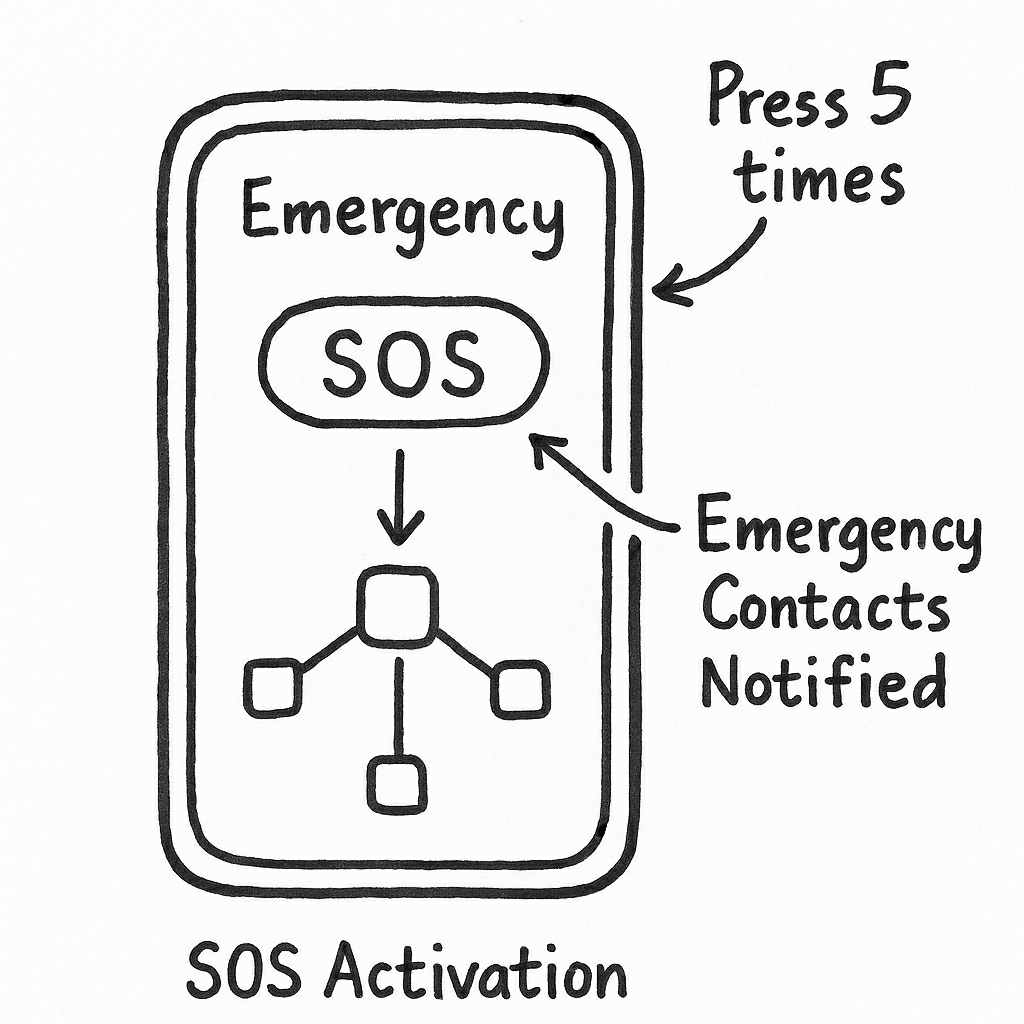
Most smartphones today have an emergency mode built in. Think of it as your direct line to help, ready to spring into action even when your hands are shaking. With just a few taps—or sometimes by pressing the power button a set number of times—you can call local emergency services. But that’s only the start. Many devices will also send a message to a specific list of contacts that you have saved, including your live location as it updates.
Medical ID and Emergency SOS
Another helpful tool lives inside your phone’s settings: Medical ID. Whether you use an iPhone or an Android device, you can create a profile storing details like allergies, health conditions, and emergency contacts. You can store information such as allergies to medicines, or health details such as being hard of hearing. First responders can see this information even if you’re unable to speak. It will be much easier for them to help you if they know about your allergies and that they should speak loudly so you can hear them. I know a person who keeps a copy of his insurance ID card in the notes section of the Medical ID, and the physical card in a sleeve attached to the back of the phone. This makes it much faster and easier for the medic to get you registered at the hospital, and for the hospital to access your medical file using the ID.
On an iPhone, the Medical ID sits inside the Health app. On Android, you’ll usually find it under Emergency Information in your settings. It only takes a few minutes to set up, and it’s one of those small steps that make you feel grateful when help arrives. If you’d like step-by-step instructions for setting up your phone’s SOS and Medical ID features, you’ll find them in the Quick Reference section of the Appendix. A short version of the instructions is provided here as well.
Quick Setup Reference
| Device Type | Emergency SOS Action |
|---|---|
| iPhone | Press power button 5 times (or hold side + volume). |
| Google Pixel | Press power 5 times → Starts automatic countdown. |
| Samsung Galaxy | Enable "SOS messages" (Press power 3 or 4 times). |
On Android phones, the same feature exists but isn’t universal. Starting with Android 12, most phones include Emergency SOS: pressing the power button five times quickly can call emergency services, share your location, or notify emergency contacts. However, some manufacturers like Samsung, Google Pixel, and OnePlus may tweak how it behaves.
Navigation and Local Alerts
Navigation deserves the same attention. Losing your sense of direction can quickly turn an inconvenience into a crisis, especially if you’re driving unfamiliar roads or hiking a remote trail. If you haven’t already, consider downloading offline maps so you can navigate confidently even if the network disappears. With those maps ready, you can find your way back even if the network disappears.
If you live in an area prone to earthquakes, wildfires, floods, or hurricanes, having a reliable local emergency app can make a huge difference. These apps warn you when something’s happening and can also give you evacuation routes, shelter locations, and official updates straight from local authorities. The key is knowing which app to use and how to set it up properly before a crisis hits.
Most countries and regions have their own official alert systems. In the United States, for example, the FEMA app and the Wireless Emergency Alerts system (WEA) automatically push warnings for severe weather, AMBER alerts, and national emergencies. But there are also regional options like ShakeAlert for earthquake early warnings on the West Coast, or local fire department apps that send evacuation notices during wildfire season. It’s worth checking your city or state’s emergency management website to see what’s available in your area.
Once you download a local emergency app, the first step is to turn on location permissions and notifications. Without them, you might not receive alerts in time. Some apps let you set multiple locations, which is useful if you have family in another area or want to monitor your workplace. You should also review what types of alerts are available because some apps let you filter between life-threatening emergencies, minor incidents, or general community notices.
Most apps also offer real-time maps and resource links. These can show active fire perimeters, earthquake magnitudes, or road closures in your area. Many apps automatically show you where to go to seek shelter. If you are in an unfamiliar area, or can’t reach your planned place of safety, it’s useful to know where heat/AC, food, water, and shelter are available for you and your pets. Some apps even show where emergency safety locations have been established for your horses or dogs. If your app allows, save key emergency numbers and pre-load family contacts. A few even have a “check-in” or “I’m safe” feature, letting you quickly notify others during a disaster.
Finally, practice using the app before you need it. If you live in an earthquake prone area, it can be alarming to hear your phone suddenly make a loud, shrill alarm to alert you of an earthquake while driving. You don’t want to cause a multi-car pileup on the highway because you swerved in surprise at the alarm. Explore the settings, learn what the alerts sound like, and check if the app works offline.
Planning For Power
Technology, of course, isn’t foolproof. Screens crack. Batteries die. That’s why it helps to keep a slip of paper with essential phone numbers somewhere you can find it easily—tucked in a wallet or glove compartment. A single contact number can bridge the gap when everything else fails.
When power is scarce, your battery becomes precious. One simple habit can stretch it far longer than most people realize: switching to airplane mode between check-ins. Airplane mode stops your phone from constantly searching for a signal—a drain on your battery even if you aren’t using it. Turning it off briefly to send updates or check for new messages, then switching it back on, can buy you hours of extra time.
For anyone who commutes long distances, travels, or spends time outdoors, carrying a compact power bank or a small backup battery can be the difference between relief and frustration. These chargers weigh almost nothing and can sit in a glove box until the day you need them most. A popular gift during the holidays is a solar-powered charging bank. These small kits fit nicely into the trunk of a car or the side bag of a motorcycle and convert the sun’s energy into power that can be used to recharge your phone.
A friend of mine learned this firsthand one winter evening when heavy ice took down both the power lines and the local cell tower. Her phone battery was almost empty. She remembered the slim charging kit she’d stashed in her backpack months before. Her car had a full fuel tank and so she used the cable in the charging kit to plug her phone into the car, ensuring that her phone charged while the car was running. She had heat and a way to call for help. That single decision meant she could share her location with rescue crews and let her family know she was safe. She admitted that it also helped her to stay calm because she could play games on her phone while waiting 6 hours for a tow truck.
Alex, the business consultant, purchased a small phone charger that is also a portable Wi-Fi hotspot. He liked the idea that a single item in his backpack could serve two purposes. When the power and the internet went out during yet another summer storm, he turned on the portable charger/hotspot and used a chat app to calmly inform his parents that their family was safe, but that communication would be sporadic until after the main power and internet were restored. His peace of mind was mirrored by the happiness from his parents who now knew that all were safe.
Your phone might be the most powerful tool you carry every day, but it works best with a little thoughtful planning. Checking your emergency settings, saving contacts, downloading maps, and keeping a charger—or charger/hotspot—on hand can help turn it into a reliable partner when life takes an unexpected turn.